Monday, June 24, 2013

How to Hack the Access 2010 & Access 2013 Customized Application Ribbon to Build Custom Ribbons Using Ezy Access Ribbon Builder

Click on the image to zoom


Starting with Access 2010, you can customize the Application Ribbon by right-clicking in the Ribbon-bar and selecting  Customize the Ribbon from the popup menu. You can use macro actions to fire custom commands on the Ribbon, using custom tabs, groups, and buttons. You can assign some very basic icons to custom commands and edit the labels, and you can hide Access development environment tabs, groups, and commands

The limitation is that the customization applies to the Access application and is not stored in the database. You can export the customization to an XML file with the extension .exportedUI. You can then import the file to use that customization in any instance of the Access application.

Custom database specific Ribbons must be built outside Access and loaded at run-time using VBA or the USysRibbon paradigm. For more information on how these custom ribbons are built look at this Access Extra post How to Build an Access 2007 Ribbon.

I have a ribbon builder tool for Access 2007/2010/2103 which is currently in BETA - Ezy Access RibbonX Builder. Details and the free download are here. With this tool you can build custom ribbons from scratch.

I have come up with a way to make the task of building custom Access ribbon easier, and here I will explain how to build a ribbon like the one in the screenshot at the top of this post.

1. I have a database where all the actions I want to include in my custom ribbon are saved as macros. The ribbon I want to build will also comprise some standard Access menu commands.

2. In Access with my database open, I invoke the Access Options dialog and click on Customize Ribbon in the sidebar, and customise the application ribbon as shown below:

Click on the image to zoom

This customization results in this application ribbon:

Click on the image to zoom

To save this customization in an XML file, I click Import/Export and select Export all customizations, and Access will save the customization with the extension .exportedUI.  You can now click Reset to remove the customization to the application ribbon.

3.  I need to do a few things to the XML file before I can use it in Ezy Access Ribbon Builder:
  • Rename the file with the extension .XML.
  • Edit the XML file to remove redundant text that is not recognised as well-formed XML by Access when you load a user-generated custom ribbon.
I use the free version of Expression Web 4 (download here) to prepare the XML file.

4. I open my XML file in Expression Web 4:

Click on the image to zoom

I then proceed as follows:
  • Right-click in the document and click Reformat XML  to format the XML correctly
  • Select and delete the first three lines of the reformatted document:


  • Right-click in the document and click Verify well-formed XML...  to check that all the XML parses without error.
5. I save the XML file and exit Expression Web 4.

6. I open the XML file in Ezy Access RibbonX Builder to finesse the custom ribbon by using some different menu elements and the full range of native Office icons.

Update 25 June 2013: XML Notepad 2007 can also be used to work with the XML file.

Click on the image to zoom

7. After working on the XML in the Builder, I have a custom ribbon for my database:


Click on the image to zoom


Wednesday, June 19, 2013

NEW BETA 3 of Ezy Access RibbonX Builder & Editor for Access 2007/2010/2013


A new BETA 3 version of my Access Ribbon Builder and Editor for Microsoft© Access is now available for free download.  There is a new GUI, additional features, some bug fixes, and the app now supports Access 2007/2010/2013. The Builder is a fast and easy way to build and manage Access Custom Ribbons.

Download the fully functional unlimited BETA

Ezy Access RibbonX Builder is a basic yet sophisticated tool for building custom ribbonbars using XML files. The most common controls can be edited, and the essential attributes for custom controls can be edited. Native Office 2007 msoImages can be assigned to custom controls.

The ribbon being built is displayed as the active RibbonBar.  You use the treeview representation of the ribbon to navigate and  build the ribbon by adding, editing, copying, pasting, and deleting controls.

File commands:
  • Load XML File... Loads an existing XML ribbon file.  The full file path is displayed in the XML File textbox.
  • Refresh Reloads the current XML file and refreshes the displayed ribbon.
  • Save As...  Saves the current XML file for the displayed ribbon as another file.
Ribbon commands:
  • Edit Control Displays an Edit Control tab where you can edit the attributes of the control selected in the treeview.
  • New Ribbon... Load a new ribbon stub and creates a new XML file for the ribbon.
  • Reference Database... Assigns a database file to populate the onAction combobox for that ribbon control with a macro action from a macro named 'Ribbon'. The full file path is displayed in the Ref DB textbox.
  • Ribbon Wizard... Select a ribbon template from the samples shipped with the Builder.
Other functions:
  • Control objects combobox Select a control from this combobox to add to the displayed ribbon. Clicking the + button adds the selected control: if the + button is disabled then the selected control cannot be added to the current parent (container) control.  The buttons to the right of the + button from left-to-right delete, copy, or paste the control currently selected in the treeview.  The name of a copied control that has not yet been pasted is displayed in a label between the Paste and the Edit Control buttons.
  • Lookup Office Image panel The functions in this panel allow you to assign images to custom ribbon controls during editing.  Place your mouse over a control in this panel for details of the function performed

Download the fully functional unlimited BETA

Thursday, May 16, 2013

Access Hosting Blog Helps You Get Your Access Database on the Web


AccessHosting.com runs a blog featuring useful posts on getting Microsoft Access Web Databases up and running: Access Hosting Academy.

Friday, April 19, 2013

Get a BONUS Metro Windows 8 Style Native MS Access SideBar Switchboard

Get a BONUS Metro Windows 8 Style Native SideBar Switchboard with each purchase of
the NATIVE SideBar MS Access Switchboard for Microsoft© Access 2000/2002/2003/2007/2010/2013, which uses only native access controls and which comes with FIVE other styles:
  • Windows XP
  • Access 2007/2010 Vista NOIR
  • Access 2007/2010 Black
  • Access 2007/2010 Silver
  • Access 2007/2010 Blue
Download the demos and purchase here.


Sunday, April 14, 2013

New Free Windows 8 Metro Style Tablet Dashboard Sample Database for Microsoft Access

From aadconsulting.com a new free Windows 8 metro style tablet dashboard sample database for Microsoft Access, featuring a mouse or touch driven modal kiosk tablet gui for Access 2007/2010/2013.

Download

Wednesday, March 13, 2013

Hosted Exchange and SharePoint 2010 from less than $2 a month

Hosted Exchange and SharePoint 2010 from less than $2 a month - limited offer http://tinyurl.com/dxv9bw7

Monday, November 26, 2012

What's New in Office 2013


The official Microsoft listing of changes in Office 2013 for Office users is here.

What's New information for Office developers is here. The new MS Access application model is set out here.

Features removed in MS Access 2013:

Access Data Projects (ADP) functionality has been removed
Access 2013 SQL-based databases will replace much of the benefit of ADPs. There are three possible mitigations for ADPs:

. Convert the ADP to an Access App solution.
. Convert the ADP to a linked Access Desktop Database.
. Convert the ADP to a full SQL-based solution.

Import objects into an ACCDE file and then create linked tables to the existing data by using an earlier version of Access.

Access support of Jet 3.x IISAM driver is no longer available
An Access 97 user can no longer open an Access 97 database in Access 2013. To upgrade, the user must open the file in Office 2010 or an earlier version, and then open it in Office 2013. ACCDB is the recommended format for desktop databases. Open the Access 97 database file in an earlier version of Access and convert it to a later version. Access 2013 supports Access 2000 and later versions through Access 2010.

PivotCharts and PivotTables are removed
There are no options to create PivotCharts and PivotTables in Access 2013. Office Web components are no longer supported. Better charting capabilities in Excel. Use enhanced PivotChart and PivotTable capabilities in Excel. Charts that are not PivotCharts and that use the MSGraph component are still available in Access 2013. Charts that are created by the Chart Wizard component are still supported.

dBASE support removed from Access

Access Data Collection
Cannot create new Data Collection forms. The data collection feature enabled creation of data collection forms and sending those forms as an e-mail message. When customers returned those e-mail messages, the data was processed and stored in an Access database. Access 2013 cannot create new forms. Access 2013 enables processing data collection forms that are created in earlier versions of Access.

Access 2003 toolbar and menus fully removed
You can no longer create Access 2003 toolbar and menus that display in Access 2013. Access 2003 toolbars and menus are displayed in Access 2007 and Access 2010 without the Ribbon. They will not display in Access 2013 but will appear in the Add-ins tab in Access 2013. Custom Ribbon commands are supported. Toolbars display in the Add-ins tab on the Ribbon. Custom Ribbon commands are also supported.

Access Replication Options fully removed
When opening a .mdb file in Access 2010 or older, the Replication Options displays in the Ribbon Database Tools tab. This option is removed from Access 2013

Access Source Code Control fully removed
The Source Code Control add-in lets Microsoft Visual SourceSafe or other source code control systems integrate to allow check-in/check-out of queries, forms, reports, macros, modules, and data. The Developer Source Code Control is not available as an add-in for Access 2013.

Access Three-State Workflow fully removed
The entry points for workflow are no longer available. In UI Macros the Workflow commands are not available. If you open an existing Access 2010 database that has UI Macros with StartNewWorkFlow or Workflow tasks, Access displays a warning.

Access Upsizing Wizard fully removed
The Upsizing Wizard allowed useers to scale up Access database tables to a new or existing Microsoft SQL Server database. This feature is removed for Access 2013

Sunday, August 26, 2012

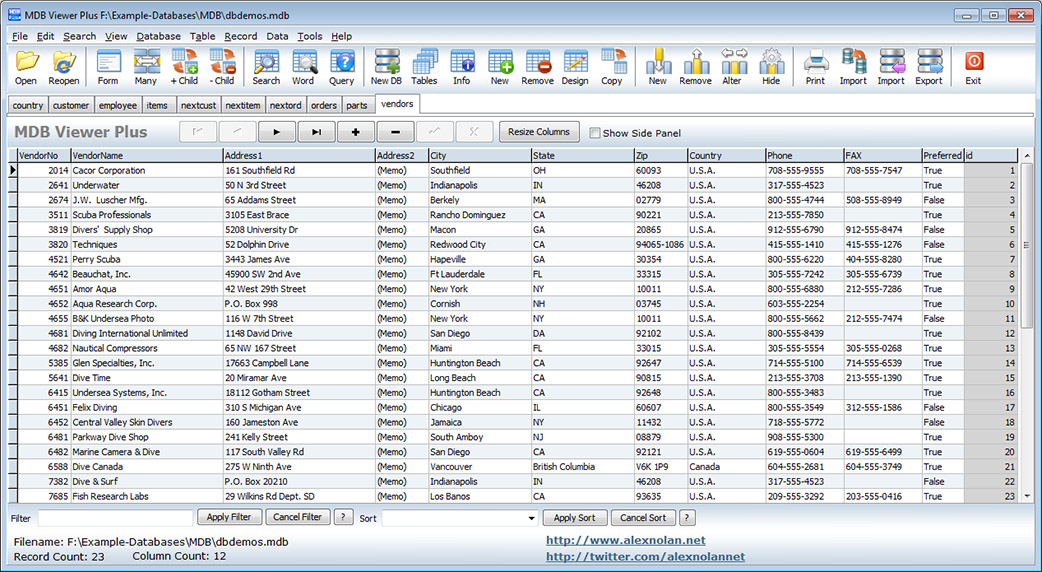
MDB Viewer Plus: free viewer/editor for Access MDBs and ACCDBs

MDB Viewer Plus from AlexNolan.Net is a free viewer/editor for Access MDBs and ACCDBs. Does not require retaiil Acces as it uses Microsoft Data Access Components (MDAC) which is installed as part of Windows.


Friday, March 30, 2012

RegDllView - View all registered dll/ocx/exe files on ypur PC


RegDllView is a neat little utility for developers that displays the list of all registered dll/ocx/exe files (COM registration). For each registered file, you can view the last date/time that it was registered, and the list of all registration entries (CLSID/ProgID). Download from CNET

Tuesday, February 21, 2012

Microsoft Office for iPad expected soon...

Microsoft Office for iPad expected in coming weeks | Sources now say that the app will soon be submitted to Apple for approval -

Thursday, February 16, 2012

New Look for aadconsulting.com

I have just launched the new look aadconsulting.com with a sleeker modern and easier to navigate design:  aadconsulting.com. Come over for a visit.

Tuesday, June 28, 2011

Office 2010 SP1 Released

The 370mb download includes the addition of integrated community content in the Access 2010 Application Part Gallery.

Tuesday, June 07, 2011

Ways to share an Access database


A good article from Office.com on how to deploy run-time and web-based Access applications.

Tuesday, April 26, 2011

Streamline Reporting on Recurring Data Imports

The article from Microsoft walks you through the creation of an Access database that supports importing monthly sales data from a text file, and provides the sample data used to create the article, as well as the database file complete with all the data imported.

The scenario comprises the following tasks:

  1. Set up an import specification to allow Access to import the same data in future months.
  2. Use the built-in Table Analyzer tool to create a normalized structure for the data.
  3. Create a set of append queries that will parse the incoming data into the normalized structure.
  4. Write a macro that automates the data import process.

Tuesday, March 29, 2011

All Access Downloads/Add-Ins for Access 97 to Access 2010

Microsoft has finally re-organised all its Access downloads in one place. Just click on a column  to sort.

Access 2010: Sample Access Database for Streamline Reporting

This Microsoft download provides a sample data set to show how to automate a recurring import of data into a Microsoft Access 2010 database.

Monday, November 15, 2010

How To Build an Access 2010 Web Database

A detailed article from MS on building a web database in Access 2010.

New Access 2010 Resource Center on TechNet

TechNet has launched a new Access 2010 Resources portal with a focus on migrating, deploying and securing Access 2010 databases. Learn how to plan and implement an Access Services site, and get links to developer resources, training, videos, and how-to articles.